344328aeb8d3c0c83c2113ab6e1bc8abe6b349a1d185bfed8e4a2488a2c4a253
What actually has to get across between the two PCs
A second PC takes the encoding load off the game, and then hands you four new problems. Here is how each one is normally solved, and what KennelBridge does instead.
How do I get game audio from my gaming PC to my streaming PC?
The usual answers are a 3.5 mm cable from the gaming PC's line-out into the streaming PC's line-in, an audio interface or a GoXLR, or letting a capture card carry the game's HDMI audio. The cable is cheap but analogue and one-way, the mixer costs real money, and the capture card only carries what the game outputs — your microphone still has to get back the other way for Discord and the game to hear you.
KennelBridge sends it over the LAN. Game audio from the gaming PC to your headphones on the streaming PC, your microphone from the streaming PC back to the gaming PC, both at once, uncompressed 48 kHz stereo at about 1.5 Mbit/s each way, with three latency presets. The mic arrives on the gaming PC as a real microphone through VB-CABLE, so you pick CABLE Output in Discord or the game and everything just works. No cable between the towers, no mixer.
How do I use Discord push-to-talk when Discord runs on the other PC?
This is the one that catches everyone: you are sitting at the gaming PC, Discord is on the streaming PC, and your push-to-talk key does nothing. A Stream Deck can fire macros but needs its own software on the target PC, and a second keyboard is a second keyboard.
KennelBridge mirrors the press. Press the key or mouse button on the PC you are at, and the other PC presses it too — and holds it for exactly as long as you hold yours, which is what push-to-talk needs. The Discord… button sets up push-to-mute, toggle mute and toggle deafen on spare F13–F24 keys in one go. Works for scene switches and start/stop recording just as well.
How do I show my keyboard, mouse or controller on stream from the other PC?
Input overlays like NohBoard or a gamepad viewer only see the PC they are running on. On a two-PC setup that is the streaming PC, where nobody is typing — so the overlay sits there empty while you play on the other machine.
KennelBridge captures on the gaming PC and draws on the streaming PC. Inputs are sent across
the LAN and the streaming PC serves the overlay itself at
http://localhost:47790/live; you add it as one Browser source in OBS. Keyboard, mouse,
Xbox pads through XInput, and DualSense, DualShock 4, Switch Pro and other HID pads through Raw
Input — including real 3D controller models. A keyboard or controller overlay in OBS fed from
another PC is exactly the case the single-PC tools cannot cover. Change the overlay in the app and
OBS updates at once, no refresh.
How do I move OBS recordings from the streaming PC to the gaming PC?
OBS records on the streaming PC, but you edit on the gaming PC — so it is a shared folder, a USB stick, or dragging files over the network by hand at the end of every session.
KennelBridge copies them as they finish. Point it at OBS's recording folder on the streaming PC and at a folder on the gaming PC. A recording is sent once OBS has genuinely finished writing it (its size has been stable for 10 s and no process still holds it open), delivered files are remembered so nothing goes twice, and Delete here after the other PC has it keeps the streaming PC's disk free. Sync now sweeps the folder on demand.
Do I need a capture card, a mixer or VoiceMeeter?
Honestly: a capture card yes, the rest mostly no. What each job normally costs, and what it costs with KennelBridge.
| The job | The usual way | With KennelBridge |
|---|---|---|
| Game picture | Capture card, or NDI over the LAN | Unchanged — KennelBridge does not move video |
| Game audio to the streaming PC | 3.5 mm line-in cable, audio interface, GoXLR, or the capture card's HDMI audio | Over the LAN, uncompressed, no cable |
| Your mic back to the gaming PC | Second mic, a splitter, or a mixer with two outputs | Over the LAN into VB-CABLE, appears as a real microphone |
| Discord push-to-talk across PCs | Stream Deck macros, a second keyboard, or giving up | The same key, mirrored, holds included |
| Keyboard / controller overlay | NohBoard or a gamepad viewer — single-PC only | Captured on the gaming PC, drawn in OBS on the streaming PC |
| Recordings to the editing PC | Shared folder, USB stick, manual copy | Sent automatically when OBS finishes the file |
| Cost | £40–£400 depending on how much of it you buy | Free, MIT-licensed, one 81 MB exe |
What your viewers see
Every overlay is a browser source the streaming PC serves itself, driven live by what you press on the gaming PC. Five ready-made looks, any key list you like, and real 3D controller models.
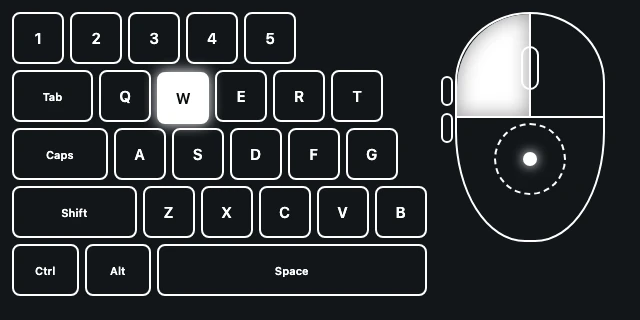
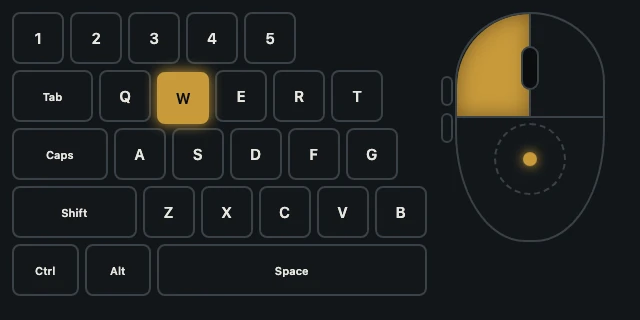
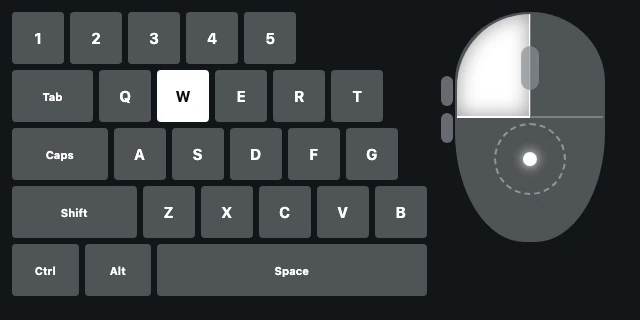
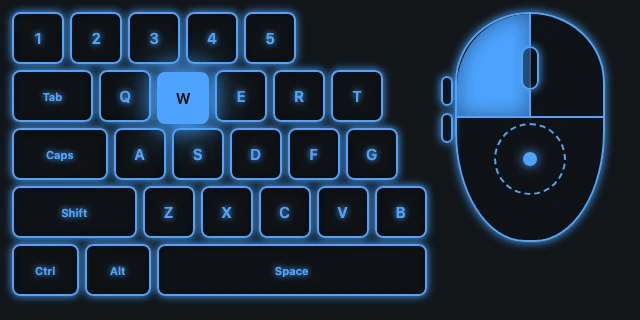
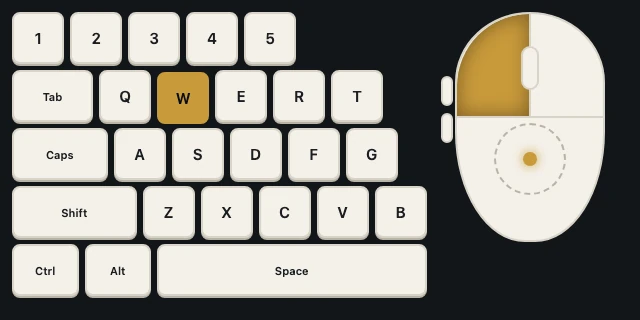
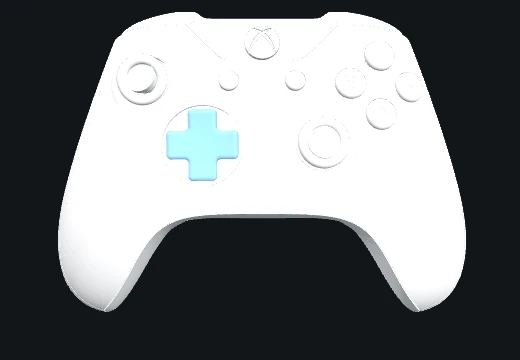
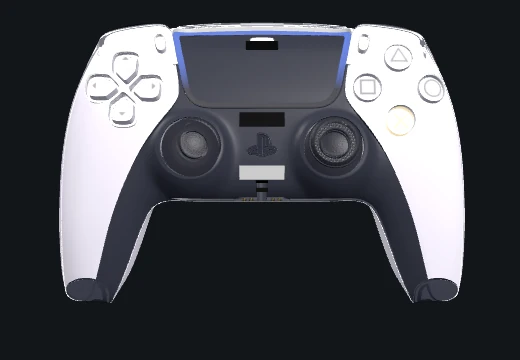
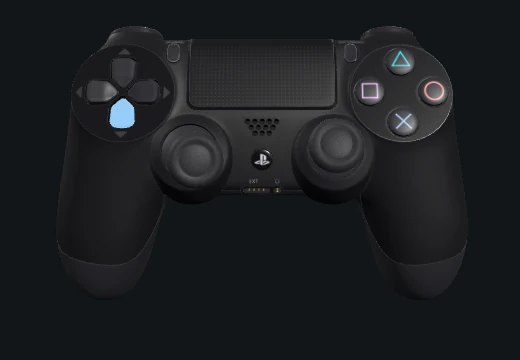
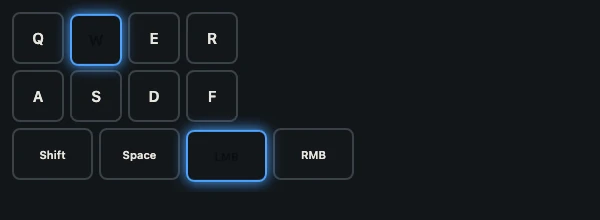
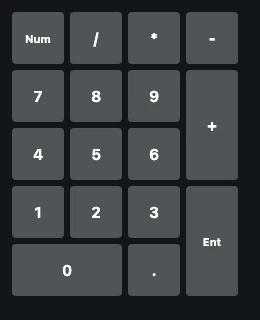
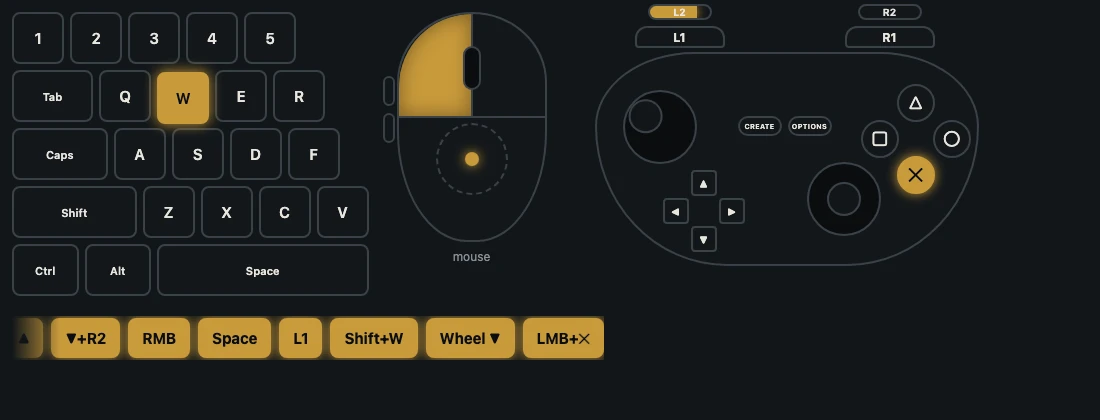
Theme, style, scale, button labels and the press history are all URL options — change them in the app and OBS follows at once, no refresh.
Four bridges, one connection
Run the same exe on both PCs, tell each one whether it is the gaming PC or the streaming PC, and every bridge knows its direction. Switch on the ones you want.
Input overlay
Live keyboard, mouse and controller overlays for OBS, captured on the gaming PC and shown on the streaming PC. WASD, full keyboard, numpad, arrows, mouse, a flat controller and real 3D Xbox, DualSense and DualShock 4 models that press, tilt and pull. One live URL in OBS follows whatever you pick in the app; ready-made looks from white outline to glass to neon.
Audio
Everything the gaming PC plays goes to the streaming PC's headphones, and the streaming PC's microphone comes back as a real mic in games and Discord through VB-CABLE. Uncompressed 48 kHz stereo over the LAN, three latency presets, and it reconnects by itself when the other PC comes up.
Hotkeys
Press a key or mouse button on one PC and the other PC presses too — push-to-mute across PCs, OBS scene switches from the gaming PC, soundboard keys. Hold rows keep the key down for exactly as long as you hold yours, with a safety release if the link drops. A Discord step sets up push to mute, toggle mute and toggle deafen with spare F13–F24 keys.
FileBridge
OBS records on the streaming PC; the recordings end up on the gaming PC where you edit. KennelBridge watches the recording folder, waits until OBS has finished writing each file, copies it across, remembers what it sent, and can free the streaming PC's disk once the gaming PC has it. A Sync now button and a transfer list with progress.
One connection page
Role, the other PC (found on the LAN by itself), a shared passphrase and a port, set once and used by every bridge. One Firewall button opens every port with a single UAC prompt. A link test tells you the two PCs can talk before you set anything else up.
Made for streamers
Streamer mode hides every IP address on screen. It lives in the tray with a Kennel dog head that flashes green on activity; Pause stops all four bridges at once. A setup wizard walks both PCs through it in a few minutes and can be reopened any time.
Gaming PC, streaming PC
Pick the role on the Connection page. This table is the whole story.
| Bridge | Gaming PC | Streaming PC |
|---|---|---|
| Input overlay | captures inputs | serves the overlay pages OBS shows (localhost:47790) |
| Audio | sends game audio · receives the mic into VB-CABLE | plays game audio in the headphones · sends the mic |
| Hotkeys | both ways | both ways |
| Files | receives finished recordings into a folder | watches the OBS recording folder and sends |
A few minutes, both PCs
Run it on both PCs
Copy KennelBridge.exe to each PC and run it. The wizard opens: pick Gaming PC on one and Streaming PC on the other.
Passphrase and firewall
Same passphrase on both (Generate makes one). Click Allow through Windows Firewall once on each PC; one rule covers every bridge.
Find the other PC
The other PC appears in the list within seconds. Pick it and press Test link. No reply? The firewall step was skipped, or the passphrases differ.
Tick the bridges
Choose what this PC should do, then finish. Each bridge has its own page for the details: the OBS URL, audio devices, presses, folders.
Overlay in OBS
On the streaming PC, pick an overlay and press Copy live URL. In OBS: Sources → + → Browser, paste it, any size, untick "Shutdown source when not visible". Whatever you select in the app shows in OBS; &demo=1 shows fake input while positioning.
Audio devices
Gaming PC: the playback device your games play through. Streaming PC: your headphones, and the microphone to send. In games and Discord on the gaming PC, pick CABLE Output as the mic. Same latency preset on both.
Presses
Add press…, press the key or button you will use here, then what the other PC should do. Hold is on by default. F13–F24 make ideal keys for the other PC, because nothing else uses them.
Recordings
Streaming PC: tick Send new recordings and point it at OBS's recording folder. Gaming PC: tick Receive recordings and pick a folder. Finished files arrive on their own; the transfer list shows progress.
Ports and protocol
Plain LAN traffic protected by the shared passphrase. Nothing leaves your network and nothing phones home.
| Port | Protocol | Used for |
|---|---|---|
| 47850 | UDP | hotkeys, input snapshots, link test |
| 47851 | UDP | finding the other PC (broadcast) |
| 47852 | UDP | audio, raw PCM both directions |
| 47853 | TCP | file transfers |
| 47790 | TCP | overlay pages for OBS, localhost only, no firewall rule needed |
What's new in 1.7.0
- MyInstants on the soundboard. Browse MyInstants opens myinstants.com in a browser window inside KennelBridge (the Edge WebView2 engine that ships with Windows), and every sound on its pages gets a + Board button. The file is fetched in that browser session and put straight on your board, saved on the PC. MyInstants only serves its sounds to a real browser, which is why it works this way rather than as a search in the app.
- The other PC gets its own copy. It cannot fetch MyInstants files itself, so KennelBridge sends the file over your LAN when you add it and before the first play on both PCs. This uses a new TCP port, 47854 (the file bridge's port + 1): press Firewall… on the Connection page again on both PCs so it is let in.
- MyInstants sounds are uploads by its users; the window says so, and the streamer is responsible for having the right to play them.
常見問題
Do I need a capture card for two-PC streaming?
For the game picture, yes — a capture card or something like NDI. KennelBridge does not move gameplay video. What it does is everything else a second PC needs: game audio and your microphone across the LAN, hotkeys that press on the other PC, live input overlays for OBS, and finished recordings copied across.
Can I send game audio between two PCs without a cable or a mixer?
Yes. The audio bridge sends game audio from the gaming PC to the streaming PC and your microphone back the other way at the same time, over your network — no 3.5 mm cable between the towers and no audio interface. It is uncompressed 48 kHz stereo, about 1.5 Mbit/s in each direction, so use a wired connection rather than Wi-Fi.
How much delay does sending audio over the network add?
There are three latency presets; pick the lowest one that stays clean on your network and set the same one on both PCs. The audio is uncompressed, so there is no encoder delay to add on top — the delay is the network plus the jitter buffer. A wired LAN is the difference between this being unnoticeable and being a problem.
Do I need VB-CABLE, and what for?
Only on the gaming PC, and only for the microphone direction. Windows has no way to present an arriving audio stream as a microphone, so VB-CABLE (free, from vb-cable.com) provides the virtual device: KennelBridge plays your mic into it and you pick CABLE Output as the microphone in Discord or the game. Game audio in the other direction needs nothing extra.
Will Discord push-to-talk actually hold, or does it just tap?
It holds. The other PC holds the key for exactly as long as you hold yours — the press is kept alive every 100 ms, and if the receiving PC hears nothing for half a second it releases the key itself, so a key can never stay stuck down. The Discord… button sets up push-to-mute, toggle mute and toggle deafen on spare F13–F24 keys for you.
Can I show my keyboard or controller on stream when the game is on the other PC?
Yes, and that is the whole point of the input overlay. Tools like NohBoard or a gamepad viewer only see the PC they run on, which on a two-PC setup is the streaming PC where nobody is playing. KennelBridge captures input on the gaming PC and the streaming PC serves the overlay at http://localhost:47790/live, which you add to OBS as one Browser source.
Which controllers work with the overlay?
Xbox pads through XInput, and DualSense, DualShock 4, Switch Pro and other HID pads through Raw Input. Three real 3D models are bundled — Xbox, DualSense and DualShock 4 — or you can use flat button layouts instead. Your own glTF model goes in %APPDATA%\KennelBridge\models.
When does a recording get sent to the other PC?
Once OBS has genuinely finished writing it: its size has been stable for 10 seconds and no process still holds the file open. Delivered files are remembered so nothing is sent twice, Sync now sweeps the folder on demand, and there is an option to delete a recording from the streaming PC after the other PC has it.
Do both PCs have to be on the same network?
Yes. Everything is plain LAN traffic protected by a shared passphrase, and the two PCs find each other by broadcast. Do not forward or expose the ports to the internet. One Windows Firewall rule per PC, added by the Firewall… button, covers every bridge.
Does it work with Streamlabs, or OBS forks?
The input overlay is an ordinary browser source, so anything that can show a web page will show it. The audio, hotkey and file bridges do not care what you stream with at all — they move audio, key presses and files between the two PCs regardless.
Is KennelBridge free?
Yes, free and open source under the MIT licence, with the source on GitHub. It is one self-contained exe — no install and no runtime to add. It is made by The Kennel, a WARDOGS community, but nothing about it is game-specific: it is a two-PC streaming tool.
Do I need all four bridges?
No. Each bridge has its own on/off switch on its own page. Use only the input overlay, or only the hotkeys, and leave the rest off. Everything shares the one connection you set up once.
Which PC is which?
Pick Gaming PC on the machine that runs the games and Streaming PC on the one that runs OBS. Every bridge works out its direction from that: the gaming PC captures inputs and game audio and receives the microphone and finished recordings; the streaming PC serves the overlay pages, plays game audio, sends the microphone and pushes recordings. Hotkeys go both ways.
Does the audio bridge need anything extra?
Only on the gaming PC, and only for the microphone direction: Windows needs a virtual audio device so the streaming PC's mic can appear as a real microphone in games and Discord. KennelBridge uses VB-CABLE for that (free, from vb-cable.com, made by VB-Audio). Game audio to the streaming PC needs nothing. Both directions run uncompressed at 48 kHz over your LAN, so use a wired connection.
How does FileBridge know a recording is finished?
It watches the folder OBS records into. A file is queued once it has stopped growing for ten seconds and nothing has it open for writing any more, then it is copied over TCP to the folder you chose on the other PC. Delivered files are remembered, so nothing is sent twice, and an option deletes the copy on the streaming PC once the gaming PC has it.
Will hotkeys work in games with anti-cheat?
Presses are delivered with Windows' SendInput, which OBS, Discord, VoiceMeeter and browsers accept. Games with kernel anti-cheat may ignore synthetic input by design; the usual pattern is the game on the gaming PC gets the real key and the other PC gets the F13–F24 key KennelBridge sends, which is exactly what the Discord push-to-mute setup does.
Does it replace InputOverlayBridge, HotkeyBridge and AudioBridge?
Yes. KennelBridge is those three merged into one app with one connection, plus FileBridge. The three still work on their own, and KennelBridge uses different ports so it can run beside them while you switch over.
Is it safe to use on my network?
All traffic stays on your LAN and every packet carries a passphrase the two PCs share; anything without it is ignored. Streamer mode hides every IP address on screen so nothing leaks on stream. Do not forward the ports to the internet.
Why does Windows warn about the exe?
It is unsigned; code-signing certificates cost money and this is a free community tool. Click More info, then Run anyway. The SHA-256 of the file is on this page so you can check the download.
Two PCs that finally act like one.
Download it, run it on both machines, pick a role on each. Questions and ideas go to the Kennel.gg Discord, where the people who built it stream with it.
⬇ Download KennelBridge 🐾 Join the Kennel Discord